> For the complete documentation index, see [llms.txt](https://docs.quizhour.mrb-lab.com/llms.txt). Markdown versions of documentation pages are available by appending `.md` to page URLs; this page is available as [Markdown](https://docs.quizhour.mrb-lab.com/admin/5.-upload-to-firebase-hosting.md).
# 5. Upload to Firebase Hosting
## Install the firebase-tools CLI
Skip this step if you already have firebase tools installed. If you do not have this, you must install that first.
> npm download link: (Download and install it)
{% hint style="info" %}
If you are not sure whether `npm` is installed on your machine, run `$ npm -v` , and see if it lists a version number. If it does, then you already have `npm`. If it says “command not found”, you need to install it.
{% endhint %}
Once `npm` is installed, run the following command:
```
npm install -g firebase-tools
```
`firebase-tools` is now installed!
## Install the required command line tools
* Log into Firebase using your Google account by running the following command:
```
firebase login
```
* Type Y and you will be redirected to your browser.
* Follow the command prompt and the link in your browser. Accept the permissions by clicking **Ok**. When you return to your terminal you should see that you are now logged in.
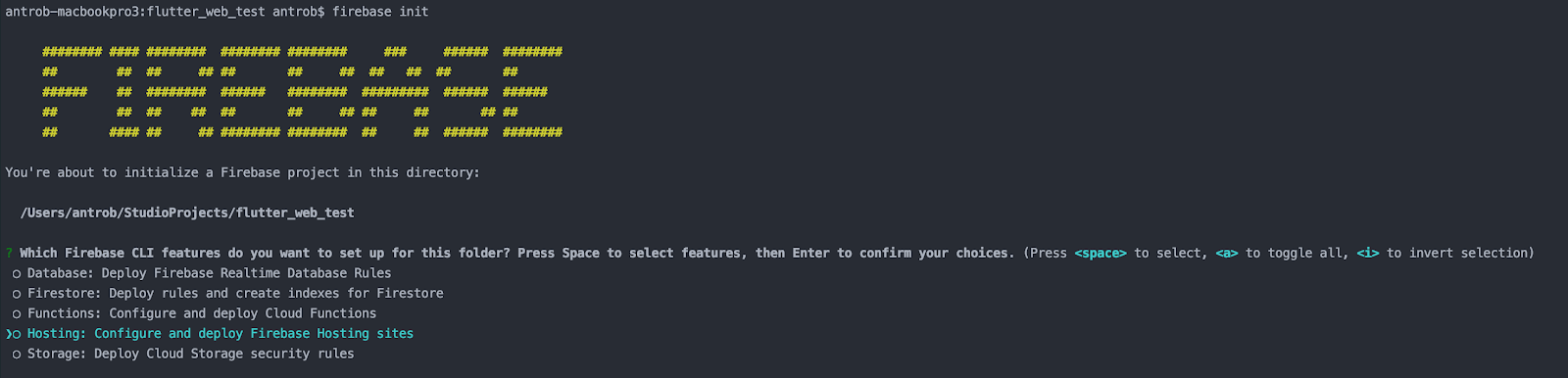
* Now you have to initialize the firebase. Run the following command:
```
firebase init
```
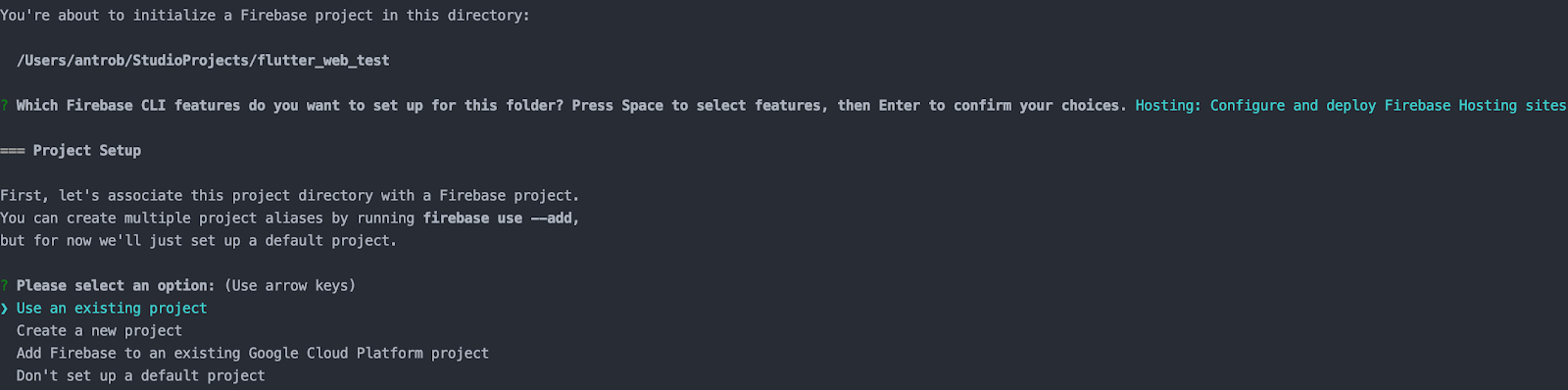
* Use the arrow keys to navigate the cursor to **Hosting** and hit the spacebar to select it, then press enter. Now you will see this screen:
* Select an existing project by pressing Enter. Use the arrow keys to select the project you have made in the firebase console.
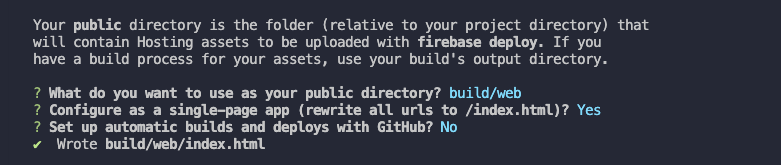
* Next, enter **build/web** as the public directory and press enter, then enter **y** (for yes) to select the single page app option.
* Enter **n** (for no) to Set up automatic builds and deploys with the GitHub option.
## Build The Web App
Run the following command to build the app for the web:
```
flutter build web --release
```
## Upload to Hosting
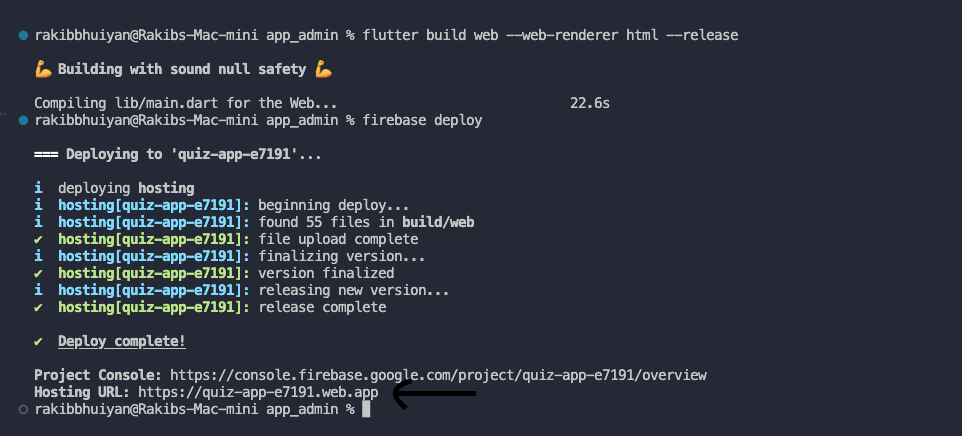
Run the following command to upload the admin app to the Firebase hosting:
```
firebase deploy
```
After this command, you will get a **Hosting URL** from Firebase which will be your **Admin URL**.